
Mobile Optimization
Small Screens, Big Clicks: Designing for Mobile First
Over 70% of YouTube watch time happens on mobile devices. Learn how to pass the 'Squint Test' and ensure your designs trigger clicks on the smallest screens.
ThumbAwesome Team
1 min read
Mobile OptimizationUX DesignVisual Hierarchy
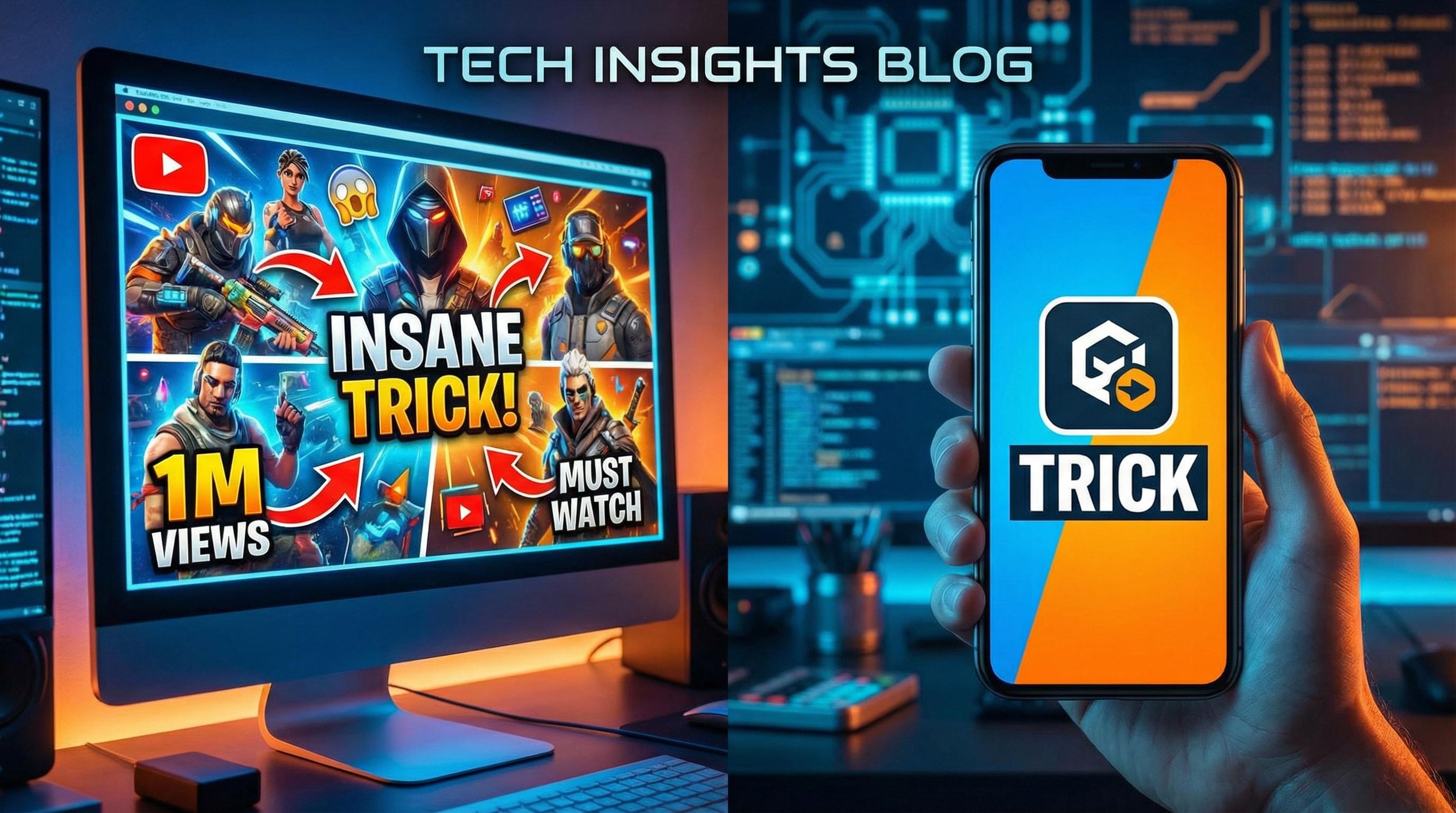
Most creators design their thumbnails on massive 27-inch 4K monitors. They zoom in to 400%, obsess over the texture of the skin, the shadow under the text, and the subtle background details. Then, they upload the video, and the audience sees... a colorful blur.
Here is the harsh reality: over 70% of YouTube watch time occurs on mobile devices.
If your thumbnail doesn't communicate its value proposition instantly on a 5-inch screen—often with the brightness turned down—you are losing the majority of your potential audience. It’s time to shift your perspective from "Desktop Perfect" to "Mobile First."
The "Postage Stamp" Constraint
On a desktop sidebar or a mobile homepage, your thumbnail is roughly the size of a postage stamp. Complex scenes become visual noise. To combat this, you need to simplify your composition drastically.
The 3-Element Rule
To ensure clarity on small screens, limit your design to a maximum of three focal points:
- The Subject: Usually a face or the main object of the video.
- The Text: Short, punchy copy (if used).
- The Context: A background element that hints at the setting.
Any more than this creates clutter. If a viewer has to pinch-to-zoom to understand your thumbnail, they have already scrolled past it.
Typography: Go Bold or Go Home
Thin, elegant fonts might look great on a website header, but they disappear on a smartphone screen.
- Weight Matters: Always choose the "Bold" or "Black" weight of a font family. Thin lines get lost against busy backgrounds.
- Sans-Serif is Safer: Fonts like Roboto, Montserrat, or Impact are standard for a reason—they remain legible at tiny sizes.
- Word Count: Keep it under four words. On mobile, "The Ultimate Guide to Minecraft" is too long. Try "Minecraft Mastered" instead.
The "Squint Test" Methodology
Before exporting your final design, perform the Squint Test.
Move back three feet from your monitor and squint your eyes until the image becomes blurry. Can you still tell what the image is about? Can you still read the text?
If the answer is no, you need to increase the contrast or size of your main elements. Mobile users are often viewing content in less-than-ideal environments—on a sunny bus ride or in a dark room. High contrast between your subject and background is essential for visibility in these conditions.
Checking Your Work with ThumbAwesome
Don't rely on your imagination. Use the ThumbAwesome preview tool to simulate how your generated thumbnail looks across different devices.
- Generate your initial design using our AI.
- Switch the preview mode to "Mobile Feed."
- Ask yourself: Does the emotional hook land instantly?
By designing for the smallest screen, you automatically ensure your thumbnail looks fantastic on the largest ones. But the reverse is rarely true.
Ready to Create Amazing Thumbnails?
Apply what you've learned and start generating professional thumbnails with AI.
AI-Powered Generation
High-Quality Results
Multiple Variations